How to Add Custom Items and Images to ox_inventory, QB-Core and ESX
Step-by-step FiveM guide: where item definitions and inventory images go in ox_inventory, QB-Core and ESX Legacy, which weight units each one uses, and the mistakes that break custom items.
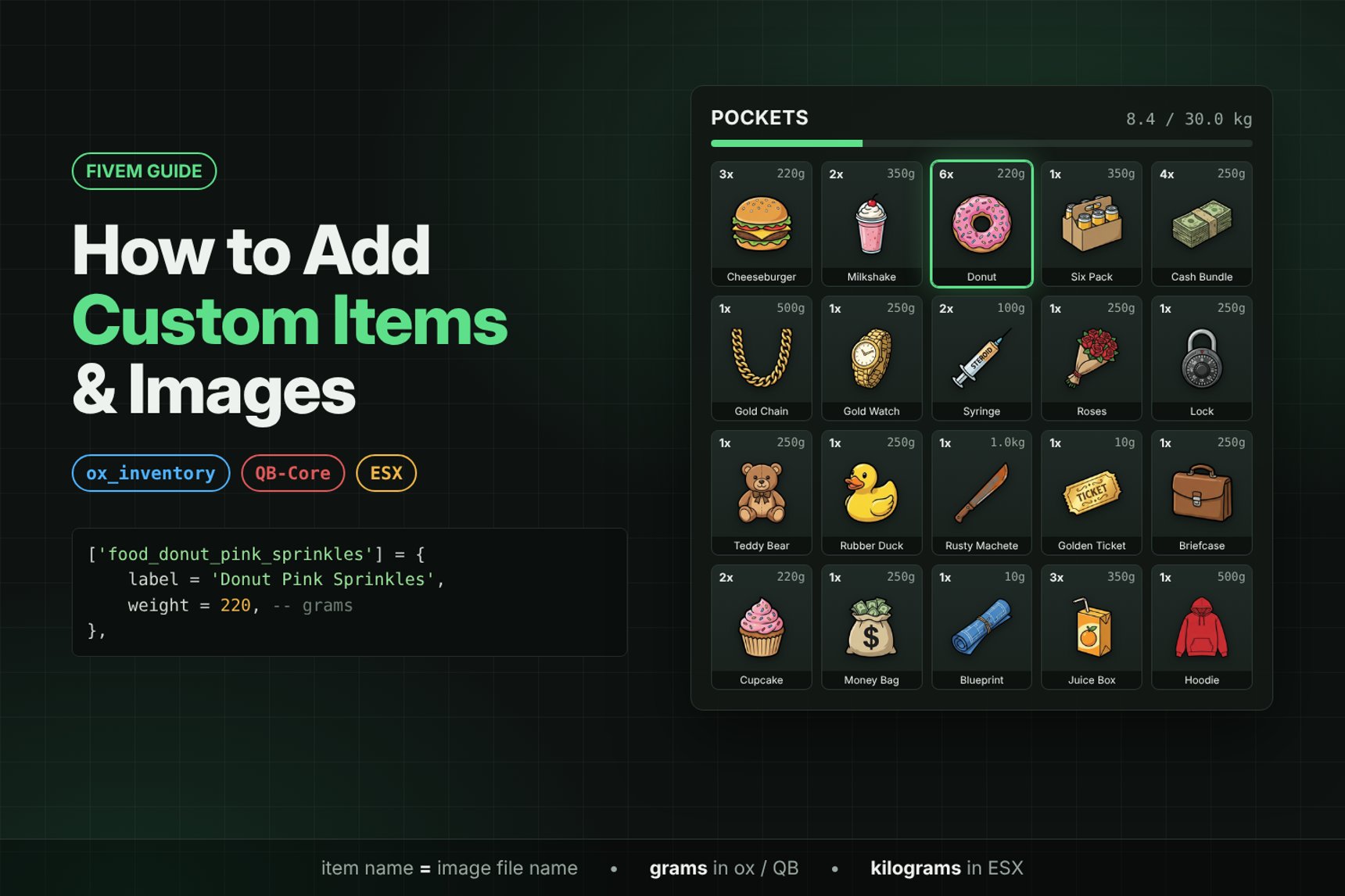
Adding a new item to a FiveM server looks like a two-minute job until the item shows up as a blank square, weighs more than the whole inventory, or quietly replaces a real weapon. This guide shows exactly where custom items and their images go in ox_inventory, QB-Core and ESX Legacy, with code you can copy and the mistakes that cost server owners the most time.
Everything below was checked against the current source code of each framework (October 2026), not against old forum posts.
The Short Version: Three Things Every Custom Item Needs
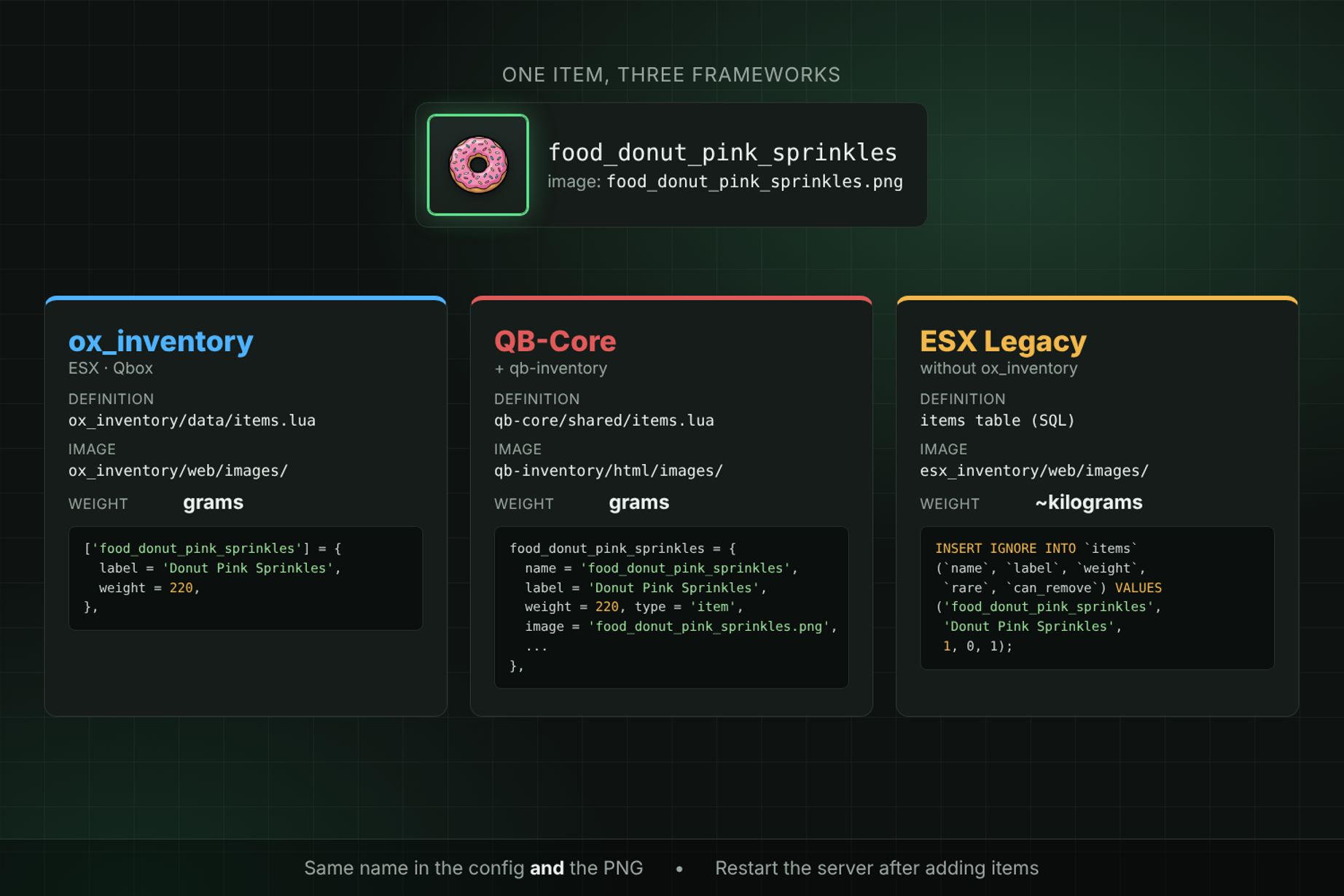
Every inventory system needs the same three pieces. Only the file names and units change.
- An item name in lowercase with underscores, e.g.
food_donut_pink_sprinkles. This name is the ID in your scripts, in/giveitemand in the database. - An item definition with a label and a weight, in the file or table your framework reads.
- A PNG image called
<item name>.png, in the folder your inventory loads images from.
| ox_inventory (ESX, Qbox) | QB-Core + qb-inventory | ESX Legacy without ox | |
|---|---|---|---|
| Item definition | ox_inventory/data/items.lua | qb-core/shared/items.lua | items table in the database |
| Image folder | ox_inventory/web/images/ | qb-inventory/html/images/ | esx_inventory/web/images/ or your inventory script |
| Weight unit | grams | grams | ~kilograms (whole numbers) |
| Default carry limit | 30 000 (30 kg) | 120 000 (120 kg) | 24 |
| Default icon size | 100 × 100 px | 100 × 100 px | depends on the script |
Step 1: Pick Item Names You Will Never Have to Change
The item name ties everything together. If the name in the config is food_donut and the file is Food_Donut.png, the image will not load on a Linux host, because file names there are case-sensitive.
Rules that keep you out of trouble:
- Lowercase letters, numbers and underscores only. No spaces, no dashes, no capitals.
- Image file name = item name +
.png. ox_inventory and esx_inventory build the image path from the item name automatically. QB-Core stores it in theimagefield, so keep it identical anyway. - Use a category prefix such as
food_,drink_,tool_ormed_. It keeps a 1000-item list readable and prevents two packs from using the same name. - Keep ESX names under 50 characters. The
nameandlabelcolumns in ESX'sitemstable arevarchar(50). - Do not start custom item names with
weapon_in ox_inventory unless you follow the fix below. ox_inventory treats that prefix specially.
Renaming later is painful: every player inventory, stash and shop that already holds the old name keeps it.
How to Add Items to ox_inventory
ox_inventory is a common choice on ESX servers and the inventory Qbox is built around. Items live in one Lua table.
The item definition
Open ox_inventory/data/items.lua and add your entry inside the return { ... } table:
['food_donut_pink_sprinkles'] = {
    label = 'Donut Pink Sprinkles',
    weight = 220,     -- grams
    stack = true,
    close = true,
},
stack and close already default to true, so a minimal item only needs label and weight. For reference, the default burger in ox_inventory weighs 220 and the bandage 115.
Where ox_inventory looks for images
By default ox_inventory loads ox_inventory/web/images/<item name>.png. Drop the PNG there and it appears with no extra config.
Two options when you need something else:
- One item with a different file: add
client = { image = 'my_file.png' }to the item. - All images from another folder or a CDN: set the convar
setr inventory:imagepath "nui://my_images/images"in yourserver.cfg.
The weapon_ prefix trap
This one is not in most tutorials. When ox_inventory looks up an item whose name starts with weapon_, it converts the name to uppercase first, because its real weapons are defined as WEAPON_PISTOL, WEAPON_SMG and so on. A custom item written as ['weapon_rusty_machete'] is stored in lowercase but searched for in uppercase, so /giveitem and AddItem answer invalid_item.
If your item names start with weapon_, write the key in uppercase and point the image at the lowercase file:
['WEAPON_RUSTY_MACHETE'] = {
    label = 'Rusty Machete',
    weight = 1000,
    client = { image = 'weapon_rusty_machete.png' },
},
The same rule applies to images of real weapons: ox_inventory looks for WEAPON_SMG.png, not weapon_smg.png. To replace a default weapon icon, save your file under the uppercase name.
ESX + ox_inventory: put items in the ox file, not the database
On ESX, ox_inventory reads ESX's items table when it starts and copies every item it does not know yet into data/items.lua, with the weight from the database. ESX weights are in kilograms (1), ox weights are in grams, so a copied item weighs 1 gram.
So on an ESX server with ox_inventory, add your items to ox_inventory/data/items.lua and skip the SQL import.
How to Add Items to QB-Core
On QB-Core, items are defined in the core resource and the images belong to the inventory resource.
The item definition
Open qb-core/shared/items.lua and add a line inside QBCore.Shared.Items = { ... }:
food_donut_pink_sprinkles = { name = 'food_donut_pink_sprinkles', label = 'Donut Pink Sprinkles', weight = 220, type = 'item', image = 'food_donut_pink_sprinkles.png', unique = false, useable = true, shouldClose = true, description = 'Fresh from the bakery' },
Weights are in grams, like ox_inventory: the default sandwich weighs 200 and the water bottle 500. Older QB versions write the key as ['food_donut_pink_sprinkles'] = { ... }. Both forms are valid Lua and work the same way.
Images in qb-inventory
Copy the PNG to qb-inventory/html/images/. The file name must match the image field exactly, including .png. Most forks of qb-inventory keep the same html/images folder, but check your fork's fxmanifest.lua if images do not appear.
Do not overwrite default weapons
QB-Core defines its weapons in the same table, with type = 'weapon'. If you add an item named weapon_smg with type = 'item', it replaces the real SMG, and players can no longer equip it. To give a default weapon a new look, only replace its image file and leave its entry alone.
How to Add Items to ESX Legacy
Without ox_inventory, ESX keeps items in the database and loads them when es_extended starts.
The SQL insert
INSERT IGNORE INTO `items` (`name`, `label`, `weight`, `rare`, `can_remove`) VALUES
    ('food_donut_pink_sprinkles', 'Donut Pink Sprinkles', 1, 0, 1);
Use INSERT IGNORE for anything with more than a few rows. A plain INSERT stops the whole import at the first name that already exists ("Duplicate entry"), and nothing gets added. INSERT IGNORE skips existing items and adds the rest.
Weight in ESX is not grams
ESX's default carry limit is Config.MaxWeight = 24, and its default items weigh 1 to 3 (bread 1, bandage 2). An item copied from an ox or QB config with weight = 220 cannot be picked up at all. Divide gram weights by 1000 and round, with 1 as the minimum.
Where ESX item images go
Recent ESX Legacy builds include esx_inventory, a slot grid inventory that loads esx_inventory/web/images/<item name>.png and shows a fallback icon when the file is missing. Older setups use the text-only F2 menu (no images at all) or a third-party inventory with its own images folder; check that script's documentation.
Item Weights: Grams vs Kilograms
Mixing up units is the most common reason a new item "cannot be carried". Realistic reference values from the frameworks' own default items:
| Item type | ox_inventory / QB-Core (grams) | ESX Legacy (~kg) |
|---|---|---|
| Card, document, key | 0–50 | 1 |
| Food (burger, sandwich) | 200–220 | 1 |
| Drink (bottle) | 350–500 | 1 |
| Phone | 700 | 1 |
| Pistol | 1 000–1 130 | 1 |
| Laptop | 4 000 | 4 |
| Rifle | 4 500 | 4–5 |
| Body armor | 5 000 | 5 |
The ESX column is rounded. Do not set ESX weights to 0 unless you really want an item to weigh nothing.
Which Image Size to Use in Your Inventory
The default icons in both ox_inventory and qb-inventory are 100 × 100 px. That is the size each slot was designed around.
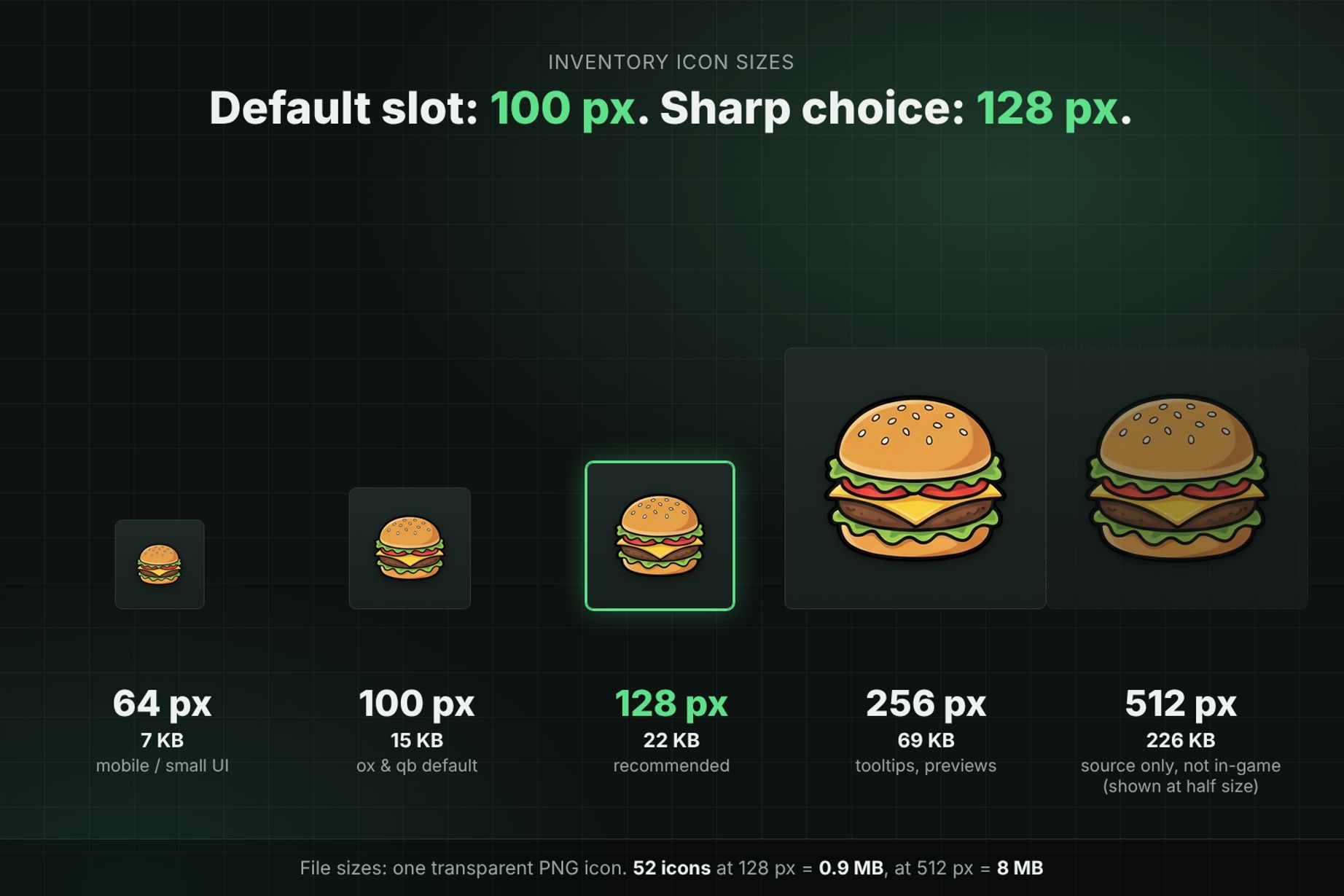
- 100 px matches the defaults exactly.
- 128 px stays sharp on 1440p and 4K screens and still loads fast. This is the size we recommend for FiveM.
- 256 px only makes sense for large tooltips or item previews.
- 512 px is source quality. Do not ship it in-game: one 512 px icon weighs about 10× more than the same icon at 128 px (226 KB vs 22 KB in our tests), and with hundreds of items players download all of it.
Use transparent PNGs with the same padding on every icon, so items sit at the same size in every slot.
Adding Hundreds of Items at Once
Writing three config files by hand works for five items. For a full economy it does not: 300 items means 300 Lua entries, 300 SQL rows and 300 file names that must all match.
The faster route is a pack that ships all three already matched: icons named after the item, plus ready config files for each framework. Our free Modern RP Starter Pack is built exactly that way, and you can use it to test the whole process from this guide on your own server:
What is inside: 52 transparent PNG icons in 64, 96, 100, 128, 256 and 512 px, and config files for ESX (INSERT IGNORE), QB-Core and ox_inventory, each in a "standard" version (one weight for all) and a "realistic" version (weight by item type, in the right unit for each framework).
If it works for your server, the full Modern RP series has five volumes with more than 7 000 FiveM item images, plus 224 bonus UI icons in the bundle. Every volume uses unique file names, so all of them install into the same folder without overwriting anything:
Troubleshooting Custom Items
The item shows a blank square or a question mark. The PNG name does not match the item name. Check capital letters and the .png extension, and make sure the file sits in the folder your inventory actually reads (web/images for ox, html/images for qb-inventory).
/giveitem says the item does not exist (invalid_item). The definition did not load: a missing comma in the Lua file, an item added to the wrong file, or, in ox_inventory, a lowercase weapon_ name (see the fix above). All three frameworks use /giveitem <player id> <item name> <amount> for testing.
The item exists but cannot be picked up. The weight is in the wrong unit. 220 in ESX means about 220 kg.
The ESX import added nothing. One of the names already existed and a plain INSERT stopped the whole import. Use INSERT IGNORE.
A default weapon stopped working after adding a pack. An entry with the same name as the weapon replaced it. Remove that entry and keep only the image.
The item exists but nothing happens on use. A definition only makes the item exist. To make it do something, register it with ESX.RegisterUsableItem (ESX), QBCore.Functions.CreateUseableItem (QB-Core) or a client.export / server.export in the item definition (ox_inventory).
Changes do not show up. Items are loaded when the resources start. Restart the server rather than a single resource, so every script sees the new item list.
Summary
- One name everywhere: item name = image file name, lowercase, with a category prefix.
- ox_inventory:
data/items.lua+web/images/, grams, uppercase keys forweapon_items. - QB-Core:
shared/items.lua+qb-inventory/html/images/, grams, never reuse a default weapon name. - ESX Legacy:
itemstable withINSERT IGNORE, weights in kilograms; with ox_inventory, use the ox file instead. - 100 px is the default icon size, 128 px is the sharp, safe choice.

Dedicated to empowering game developers with premium digital assets. We specialize in crafting immersive UI designs, distinct logos, and web solutions that take your game project to the next level.